What Claude Docs is
You know the routine. Claude writes something, someone copies it into another tool, and from then on Claude has no idea what happened to it.
Claude Docs fixes that. Anthropic announced it on 16 September 2026, alongside Claude Slides and Claude Design. All three are artifact types, and all three are marked Beta in the app.
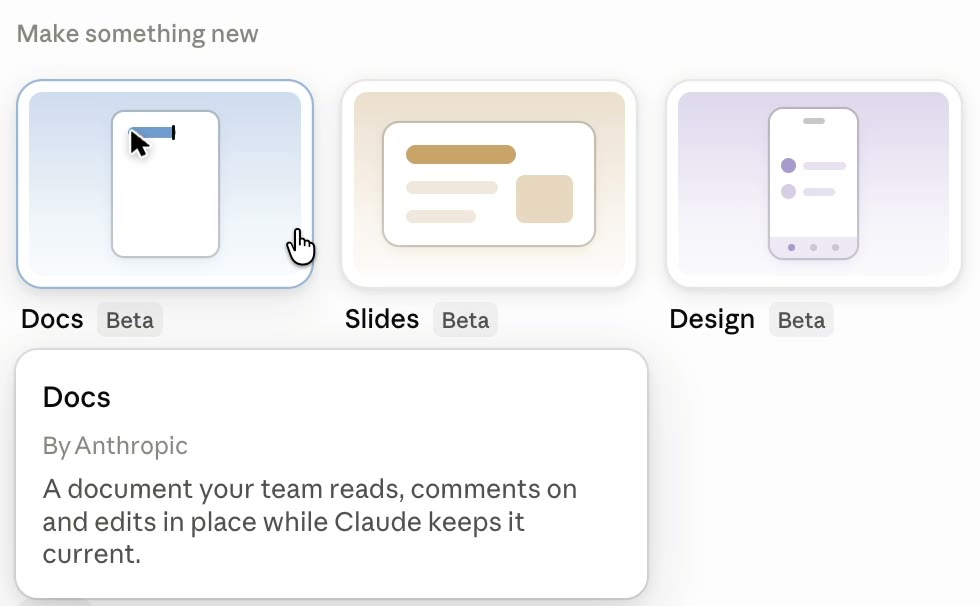
So what is a Doc? Anthropic's own description in the app is short: a document your team reads, comments on and edits in place, while Claude keeps it current. In plain English, the doc stays inside Claude. Your team works on it there, and Claude can keep updating it.
This guide walks through Docs. Slides and Design sit right next to it in the same menu.
Where to find it
Open the Claude app and go to the Artifacts tab.
Near the top you will see a row called "Make something new" with three tiles: Docs, Slides and Design. Each one has a Beta label. Hover over Docs and you get the short description from Part 01.
Step 1: Create a doc
There are three ways in. Pick whichever fits how you already work.
/docs command to start one.Now, if your team lives in Claude Code, it works there too. On the desktop app the doc opens in a side panel. In the terminal, you get a link to open it.
So what should you ask for? Be specific about who the doc is for and what sections it needs. Here is a prompt you can copy.
Create a Claude Doc for my team.

WHAT IT IS
[Describe it in one line, e.g. "our weekly team meeting notes" or "the step-by-step process for onboarding a new client".]

WHO READS IT
[Who uses it, e.g. "my 4-person sales team" or "new hires in their first week".]

SECTIONS
[List the sections you want, or say "suggest the sections for me".]

FORMAT
- Use headings for each section.
- Put any steps in a numbered list.
- Put tasks in a checklist so people can tick them off.
- Put anything with owners and dates in a table.

Keep the language plain. If you need information from me to fill a section, leave the section short and ask me at the end.
Step 2: Build it out
Once the doc is open, you can shape it yourself without going back to the chat.
At the top of the doc you will see the date and the author. Above that is a small toolbar with buttons for a table, an image and a checklist, plus a "+" button.
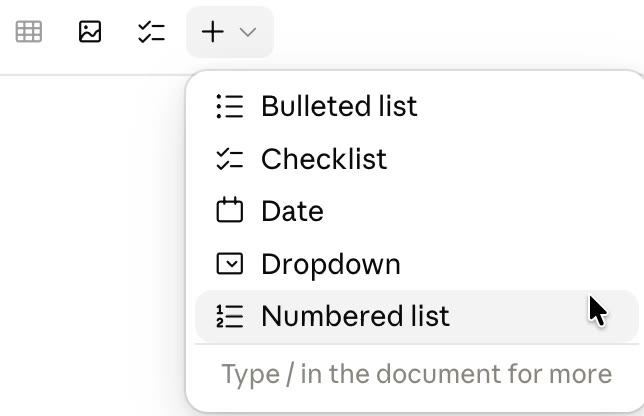
- Click the "+" button to open the insert menu. You get a bulleted list, a checklist, a date, a dropdown and a numbered list.
- Need more? Type
/anywhere in the document to see the rest of the options. - Add a table with the table button. Then right-click inside it to add or remove rows and columns.
- Use a checklist for anything people need to tick off, like action items from a meeting.
- Use a date block for deadlines, and a dropdown for things like a status (for example: not started, in progress, done).
Anthropic's help page also lists headings, tables, tabs, charts, diagrams and timelines as things a doc can hold. So if a process is easier to follow as a diagram, ask Claude for one.
Update my Claude Doc "[doc name]".

1. Add a table called "Action items" with these columns: task, owner, due date, status.
2. Make the status column a dropdown with: not started, in progress, done.
3. Add a checklist at the top called "Before the next meeting".
4. Do not change any of the text that is already in the doc.
Step 3: Invite your team and pick roles
This is where a doc becomes a team doc. And the role you give each person matters.
Here is what I see in my own app:
- Click the Share button at the top right of the doc.
- Type the email address of the person you want to invite.
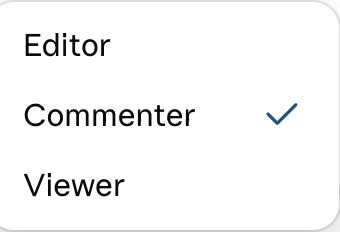
- Choose their role from the dropdown next to the email: Editor, Commenter or Viewer.
- Add a message if you want. The app says the message only goes in the invitation email for people who already have a Claude account.
- Click Send invite. Or use Copy link to share a link instead.
Which role to give who
| Role | Give it to | Why |
|---|---|---|
| Viewer | People who only need to read it, like the wider team or a new hire. | They see the latest version and can't change anything by accident. |
| Commenter | Reviewers and approvers, like a manager signing off a proposal. | They can flag changes without rewriting your work. |
| Editor | The few people who own the doc and keep it accurate. | They can change the content, and on Anthropic's help page, export is for editors. |
Start everyone on the lowest role they need. You can always move them up later.
Step 4: Review with comments
Comments keep the feedback on the doc, right next to the words it is about.
- Select the text you want to talk about.
- Leave your comment on it.
- To see every comment on the doc, click the comments icon at the top right, next to Share.
Now, one thing to plan for. If you invite someone from outside your organization, they can't @mention other people or ask Claude in a comment. So for outside reviewers, ask them to leave plain comments, and have someone on your team act on them.
Read the open comments on my Claude Doc "[doc name]".

1. List each comment in a short table: what it says, which section it is on, and what change it asks for.
2. Group them: clear changes I can make now, questions I need to answer, and comments that disagree with each other.
3. Do not edit the doc yet. Wait for me to say which changes to make.
Step 5: Export it or send it on
Sometimes the doc has to leave Claude. A client wants a PDF, or your team runs on Google Drive.
- Click Share at the top right.
- Switch to the Export tab.
- Pick where it goes.
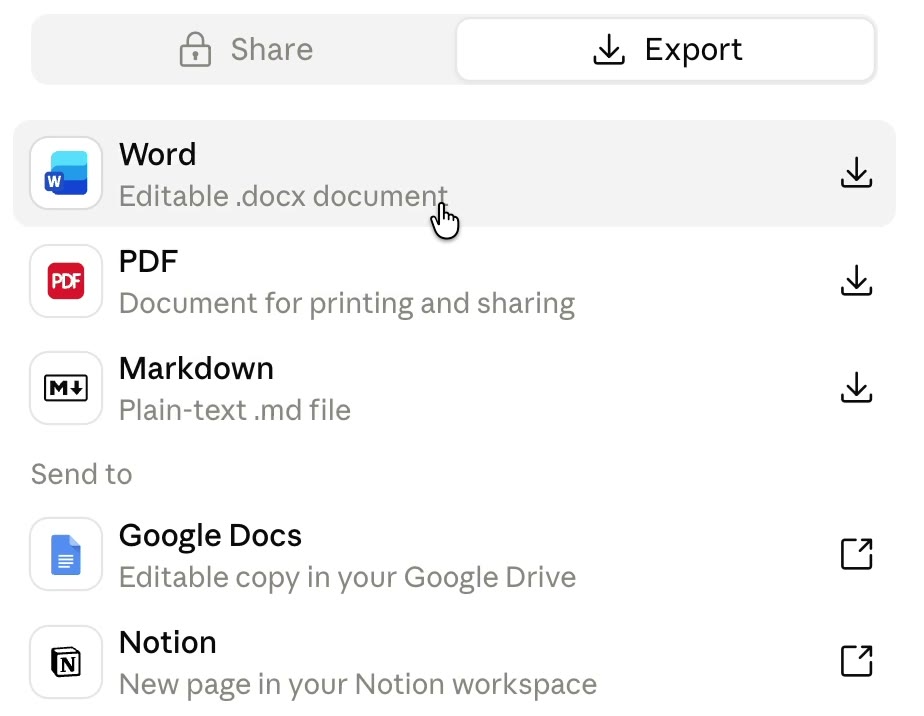
Anthropic's help page lists Word, PDF, Markdown and Google Docs. Notion showed up in my app too. Export is for editors, so a Viewer or Commenter won't be able to do this.
Four docs worth trying first
These are ideas to start with. Pick the one your team argues about most.
Meeting notes
One doc per recurring meeting. A checklist for action items, a table with owners and dates, and a dropdown for status.
Standard operating procedures
Write the process as a numbered list, then ask Claude to update it whenever the process changes.
Proposals
Draft with Claude, get comments from whoever signs off, then export to Word or PDF for the client.
Workshop or training outlines
Use a table for the timings and a checklist for what to prepare. Your co-presenters comment as you build it.
What it can't do yet
Docs is in beta. Know these before you move a team process onto it.
Muhammad Asmal
Muhammad Asmal is an AI business growth strategist and the founder of Asmal Digital and AI Lead Builder. He helps business owners put AI to work in practical ways, drawing on more than 13 years of digital marketing agency experience. He has delivered in-person AI workshops across the US, South Africa and Dubai, and his AI education content has passed 10 million views across TikTok and Instagram.
Build with a community behind you.
Join the AI Lead Builder community for practical support putting AI to work in your business.
Your membership brings together weekly coaching with Muhammad, training and call replays, business software, and the Agency OS plugin.
Learn and get help
Weekly coaching, training, and a community of business owners.
Build and put it to use
Agency OS plus software for your CRM, funnels, and follow-up.
Hear it from members, on camera
Straight from the community chat
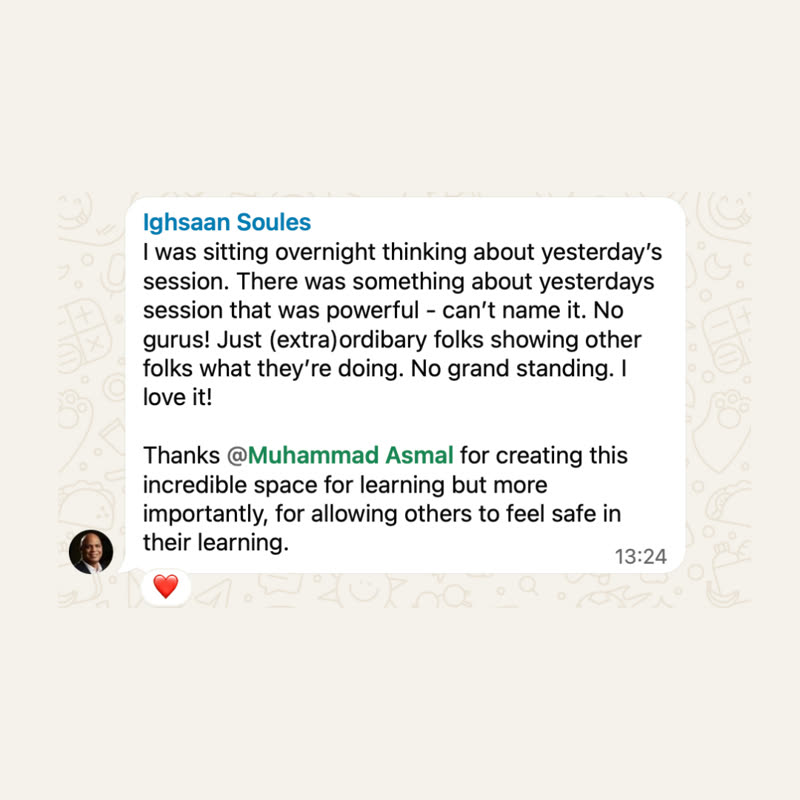
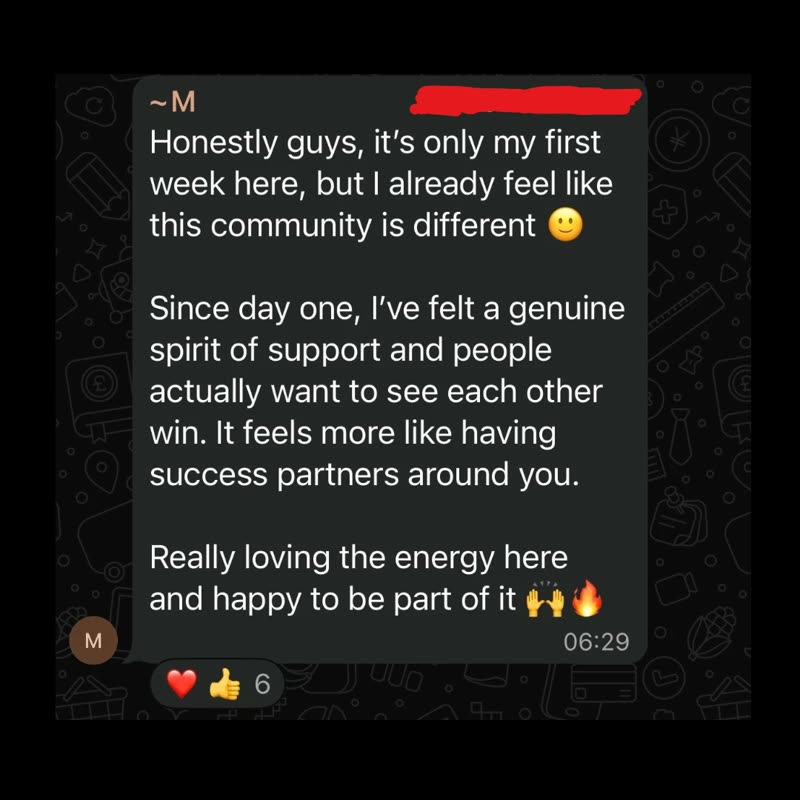
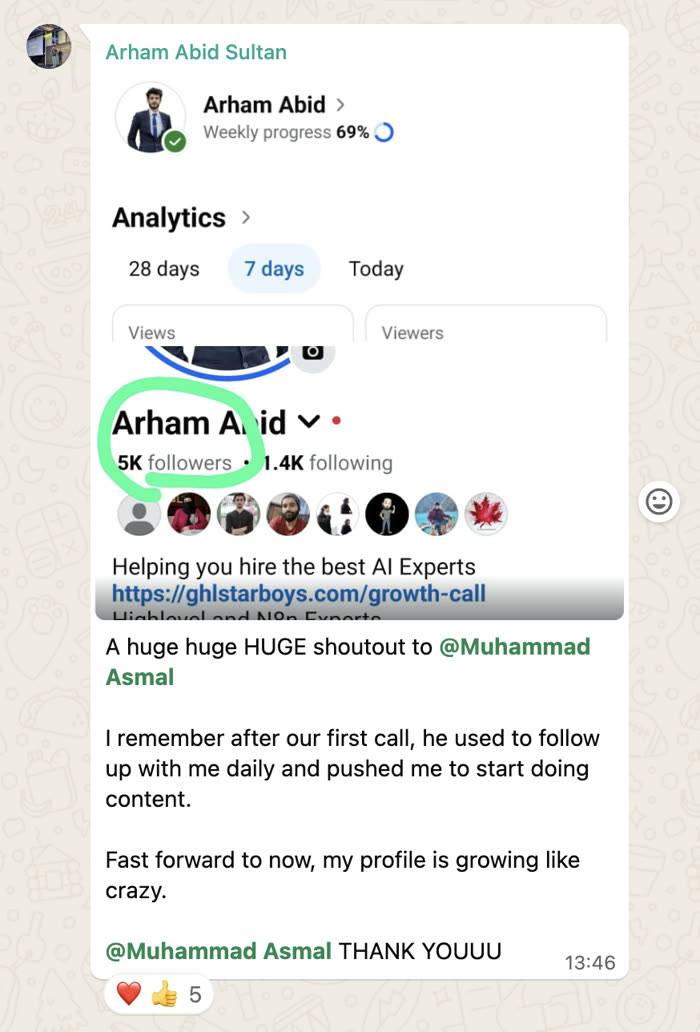
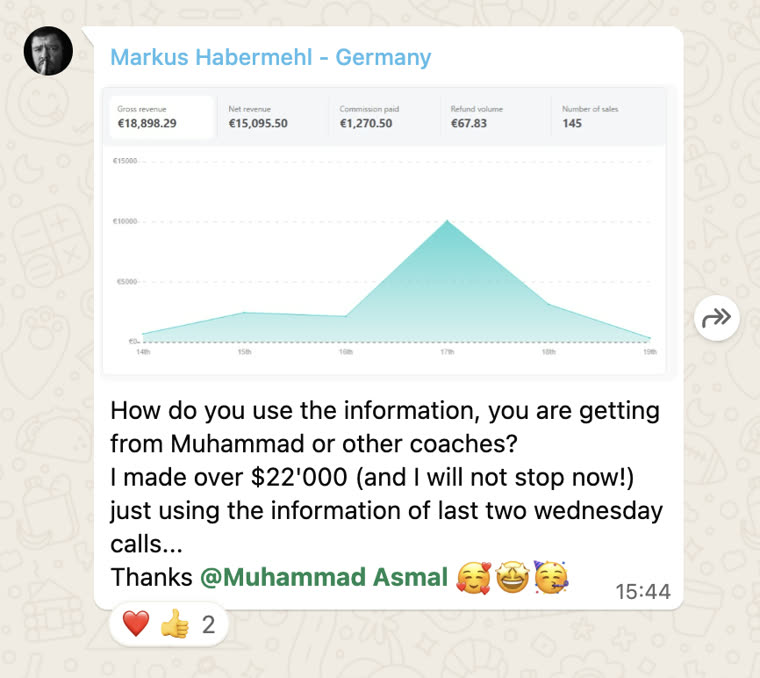
Shared with each member's permission. Individual results vary.
Cancel anytime.
Join AI Lead BuilderSee the membership details and current offer on the next page.